How to Download Region-Blocked Instagram Reels (Even If It’s Not Available in Your Country)
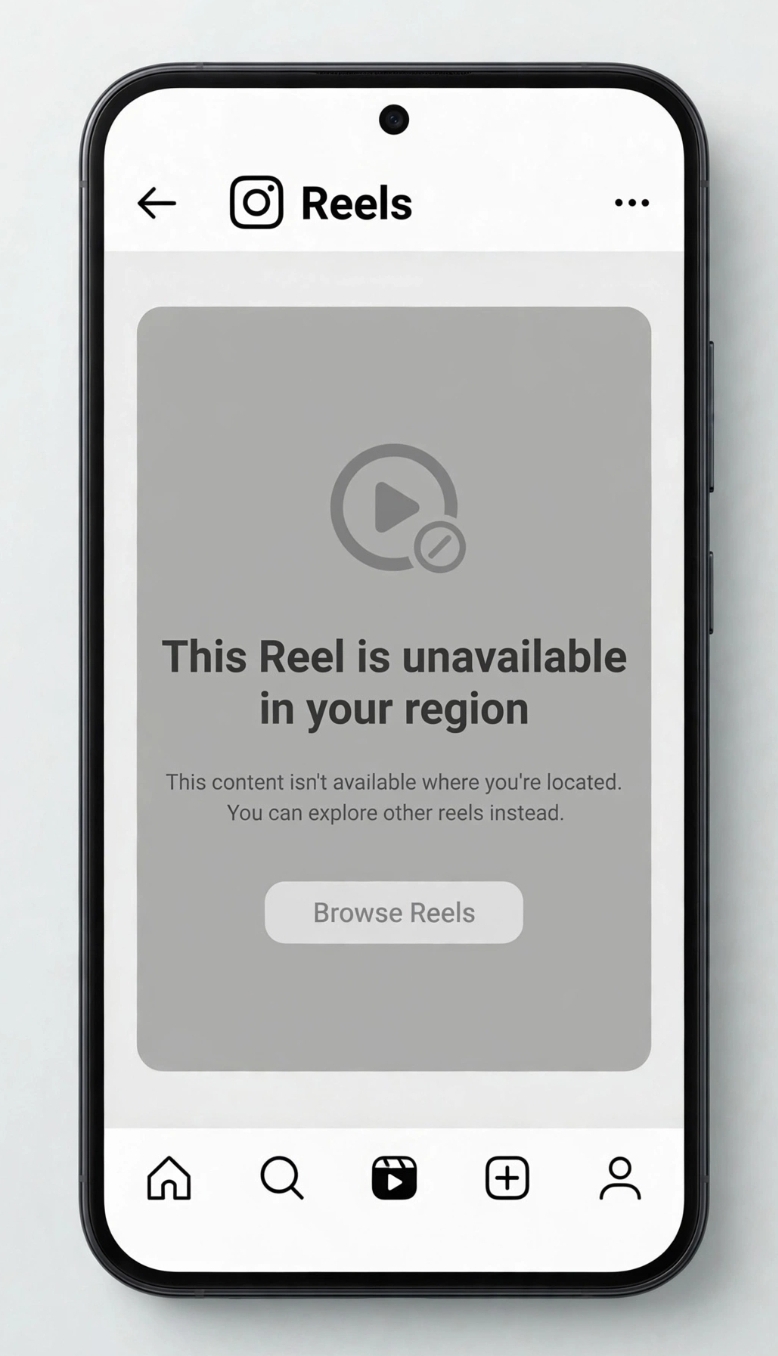
You tap a Reel someone shared, and instead of video you get a grey placeholder: “This Reel is unavailable in your region.” Other times the video plays fine but the audio is completely muted — no error message, just silence. It’s one of the most frustrating dead ends on Instagram, and it has nothing to do with your phone, your Wi‑Fi, or your account.
Instagram enforces geographic licensing restrictions. Music labels, sports broadcasters, and brand partners license content territory by territory, so a Reel that’s perfectly legal in the United States may be blocked in Thailand, Brazil, or Germany. Instagram reads your IP address to decide what you’re allowed to see — and if your IP says “wrong country,” you get the block.
The fix is a two-part process, and it takes about 90 seconds:
- Change your virtual location so Instagram thinks you’re browsing from a permitted country — this is where Surfshark VPN does the heavy lifting.
- Save the now-unlocked video as a clean MP4 using DownloadMedia’s Instagram Reels Downloader — free, no watermark, no sign‑up.
Below is the exact step‑by‑step workflow, plus the reasons cheap proxies fail and how to troubleshoot the three most common errors.
Why Are Certain Instagram Reels Geo-Restricted?
Geo-blocking isn’t random, and it isn’t a bug. There are three specific mechanisms at play.
1. Music & Audio Copyright (the Primary Cause)
This is behind the vast majority of region blocks. When a creator adds a licensed track to a Reel, Instagram must verify that the track is cleared in your country. Licensing deals are negotiated per territory, so a song available in the US and UK may have no agreement at all in your region. Instagram’s solution is blunt: mute the audio or block the Reel entirely. This is also why the same Reel can play with sound for a friend abroad but sit silent on your device.
2. Regional Brand Deals & Account Geo-Targeting
Brands routinely pay for country-specific campaigns. A Reel promoting a product available only in Canada may be deliberately restricted to Canadian viewers. Some accounts also geo-target their own posts to control reach, meaning the Reel simply isn’t served to your IP range — even though the content itself has no copyright issue.
3. Government or Network Firewalls
In some countries, Instagram itself (or specific content categories) is throttled or blocked at the network level by ISPs and government firewalls. University and corporate networks sometimes block social media domains too. In these cases, the Reel isn’t geo-restricted by Instagram — your connection is being filtered before the request ever reaches Meta’s servers.
Step-by-Step Guide: How to Download Any Blocked Reel
Follow these four steps in order. Don’t skip Step 2 — it verifies the unlock actually worked before you waste time fetching a link.
Step 1: Connect to an Unrestricted Region
Install Surfshark VPN on your phone or desktop and connect to a server in a country with broad licensing coverage — the United States, United Kingdom, or Germany are the safest defaults. Surfshark’s 10 Gbps server network handles high-bandwidth video without the buffering you get from free tools, and its clean, rotating IPs bypass the IP bans that Instagram applies to known proxy ranges.
Step 2: Open Instagram, Refresh, and Verify Playback
Force‑close Instagram completely, then reopen it. Navigate back to the Reel. If it was previously greyed out, pull down to refresh the feed. You should now see full video and hear the original audio.
- Video plays with sound: you’re unlocked — continue to Step 3.
- Video plays but audio is still muted: jump to the Troubleshooting section below.
- Still shows “unavailable in your region”: clear the app cache, then retry.
Step 3: Copy the Reel Link
Tap the paper‑plane Share icon beneath the Reel, then choose Copy Link. On
desktop, copy the URL straight from your browser’s address bar. Make sure you copy the link to the
individual Reel (it contains /reel/ in the URL), not the creator’s profile.
Step 4: Save It with DownloadMedia
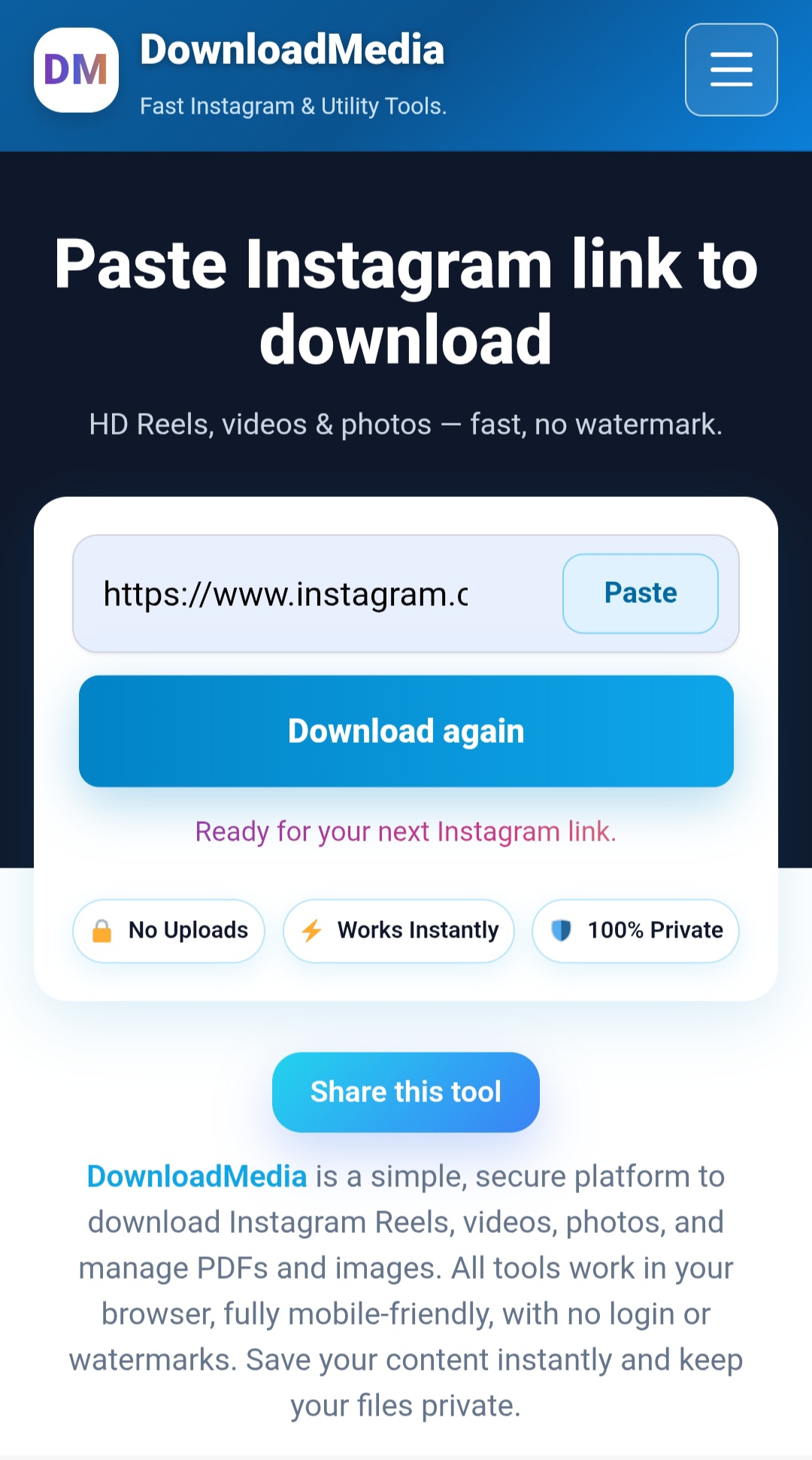
Open DownloadMedia’s Reels Downloader, paste the URL into the input field, and hit Download. The tool fetches the source file and delivers a clean, watermark‑free MP4 in the highest resolution Instagram serves — usually 1080p. No account, no ads, no browser extensions required.
Why Free Proxies & Low-Quality VPNs Fail
If you’ve already tried a free proxy extension and watched it fail, you’re not alone. Here’s what’s actually happening:
- Blacklisted IP addresses. Free proxy IPs are public, heavily abused, and instantly flagged by Instagram’s anti‑scraping systems. You’ll get blocked, rate‑limited, or shadow‑banned.
- Aggressive throttling. Free tiers cap bandwidth so hard that loading a single Reel takes minutes — and video downloads time out entirely.
- Real security risks. Many free proxies log your traffic, inject ads, or sell browsing data. Routing your Instagram session through one is a genuine privacy hazard.
- No server choice. You can’t pick a licensing-friendly country, which is the entire point.
Which Server Region Should You Use?
| Server Region | Best For | Licensing Coverage | Speed |
|---|---|---|---|
| United States | Music-heavy Reels, brand campaigns | Largest catalog | Excellent |
| United Kingdom | European tracks, sports clips | Very broad | Excellent |
| Germany | EU-licensed audio, GDPR-friendly routing | Very broad | Excellent |
| Canada / Australia | Backup option if US servers are crowded | Broad | Good |
Troubleshooting Common Issues
“The audio is still muted after connecting”
This usually means the track simply isn’t licensed in the region you chose. Switch to a US or UK server — those markets have the largest music catalogs because most major label deals are negotiated there first. After switching, force‑close Instagram and reopen it so the app re‑reads your IP.
“The link shows a private post error”
A VPN cannot bypass privacy settings, and it shouldn’t. If the account is private, no downloader — including DownloadMedia — can fetch the media, because the content isn’t publicly served. The same applies to deleted Reels, expired Stories, and content behind age verification you haven’t completed while logged in. Only public Reels are downloadable.
“It worked yesterday, now it’s blocked again”
This is almost always a cache issue. Your device stored the old region response and is serving it locally instead of re‑querying Instagram. Fix it by:
- Clearing the Instagram app cache (Android: Settings → Apps → Instagram → Storage → Clear Cache).
- Force‑closing and reopening the app after connecting to the VPN.
- Clearing your browser cache if you’re on desktop, then hard‑refreshing with
Ctrl + Shift + R. - Switching to a different server in the same country to get a fresh IP.
Frequently Asked Questions
Is it legal to download region-blocked Reels?
Can I download a blocked Reel without a VPN?
Does DownloadMedia store my downloaded files or account data?
Which country server works best for Instagram Reels?
Conclusion & Next Steps
Region blocks aren’t permanent — they’re just Instagram reading your IP and applying a licensing rule. Change the IP, and the wall comes down. The workflow is simple: connect to an unrestricted country with Surfshark VPN, verify the Reel plays with full audio, copy the link, then save the clean MP4 with DownloadMedia.
Two quick reminders before you go: keep the VPN connected for the entire download, and remember that private accounts and deleted posts are off‑limits no matter what tool you use. Everything else is fair game.
Affiliate disclosure: This article contains sponsored links. If you purchase through them, we may
earn a commission at no extra cost to you.
Disclaimer: DownloadMedia is not affiliated with, endorsed by, or sponsored by Meta Platforms,
Inc. or Instagram. Always respect creators’ rights and applicable local laws when downloading content.